Monthly Archives: October 2026

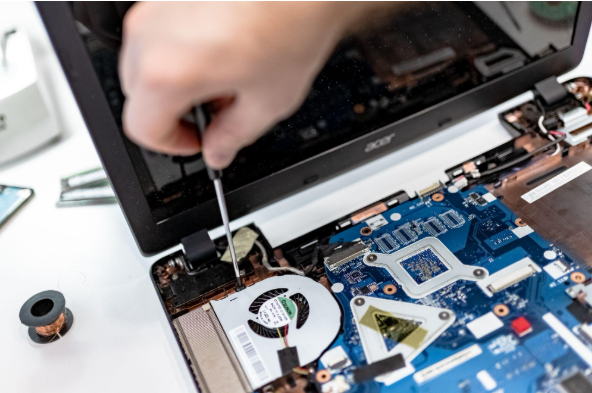
computer being repaired

Summary: Three to five years is a practical replacement range for many business computers. The right time depends on security support, reliability, performance, warranty coverage, repair costs, and the employee’s work. Replace any computer that cannot run a supported operating system or the software your business requires.Most business computers do not fail all at once. A laptop may still handle email and documents but take longer to start, struggle during video calls, or run out of battery halfway through the day.For many office computers, three to five years is a sensible replacement range. Start reviewing each device when it reaches three years old, then decide whether it should be replaced soon or kept for another year or two.Some computers will need to be replaced sooner because they cannot install a supported operating system, no longer run important software properly, or require frequent repairs. Others may remain useful beyond five years,

two women with laptops

Summary: Your IT budget should include the technology you already use, the support required to maintain it, and the upgrades you expect to make during the year. It should also cover cybersecurity, backups, employee changes, planned projects, and a reserve for urgent repairs or replacements.If your IT budget only covers computers, Microsoft 365, and the occasional repair, it is probably missing several costs.Your business may also be paying for software subscriptions, cloud storage, backups, security tools, internet services, phone systems, websites, network equipment, staff training, and outside IT support.Some of those costs appear every month. Others arrive once a year or only when equipment needs to be replaced. Without a complete budget, an annual renewal or failed computer can become an expense the business did not prepare for.A detailed IT budget shows what you are paying for now, what will need to be replaced, and which improvements are planned for

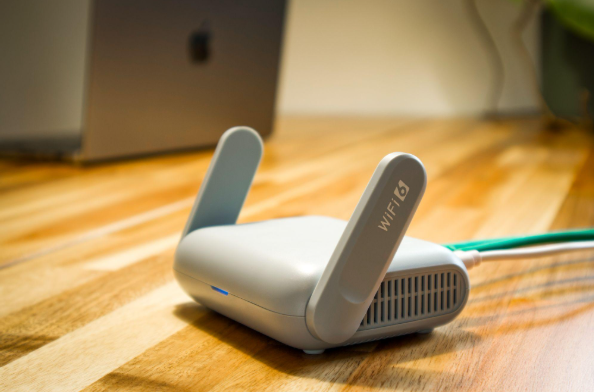
white wifi router

Summary: Guest Wi-Fi should provide internet access while blocking connections to your internal business network. A different Wi-Fi name and password do not confirm that the networks are separated. The router, access points, and firewall must also be configured to prevent guest devices from reaching internal systems.Offering Wi-Fi to customers, contractors, and visitors is convenient. But their phones and laptops should not connect to the same network as your business computers, printers, security cameras, servers, and file storage.Even when you trust the person, you do not control their device. You do not know whether it has current security updates, whether it contains malware, or who else has used it.A properly configured guest network gives visitors internet access without allowing their devices to communicate with your business systems.What Separate Guest Wi-Fi MeansWhen someone connects to your guest Wi-Fi, they should be able to browse the internet, use email, and access online

laptop with storage device plugged in

Summary: Before canceling a cloud service, export your data and confirm that the files can be opened or imported. Move any connected applications and sign-ins, then check the provider’s current rules for access, billing, retention, and deletion.A cloud service may hold years of customer records, documents, emails, invoices, project history, or staff activity.If you cancel before moving that information, employees may lose access before the business has a usable copy. Some providers give administrators more time to retrieve data. Others restrict access or begin deleting information after cancellation.The rules depend on the service, subscription, contract, and how the account was purchased. Check the provider’s current terms before setting a cancellation date.What can happen after you cancelCanceling a subscription may stop employees from signing in, make applications read-only, or leave data available only to administrators. Some services begin a retention period before deletion, while others remove data sooner.Billing may also continue

lady holding phone while working on a laptop

Summary: Allow personal devices only for approved work, through approved apps, and when the device meets your security requirements. Use company-owned devices for administration, sensitive work, or jobs that require large amounts of data to be stored locally.Employees often use personal devices for work before the business has made a decision about it. They add work email to a phone, download a file to a home laptop, or sign into a company app from a computer shared with family.Once business data is stored on a personal device, you have less control over updates, installed apps, backups, and who else uses the device. You also need a way to remove company data when the employee leaves or the device is lost.Personal devices can be allowed, but the business should decide which devices, applications, and types of work are permitted.What BYOD includesBring your own device, usually shortened to BYOD, means an employee

people working on computer

Summary: Employees should use standard accounts for email, web browsing, and everyday work. Administrator access should be limited to approved IT tasks and protected with a separate account.Administrator access often starts with one request. An employee needs to install a printer, update a specialist program, or change a setting on their computer.Giving them administrator access gets the job done. The problem is that the access usually stays after the request has been completed.From then on, the employee can approve other software installations and make changes that would normally require help from IT. If they install the wrong program or someone takes control of their account, those permissions can also be used to change the computer.For everyday work, employees should use standard accounts. Administrator access should be kept for tasks that require it.What administrator access allows someone to doAn administrator has more control over a computer than a standard user.On Windows,